Smart Property
Smart Locker
Assign lockers to staff or teams, offer temporary storage for visitors, and let recipients collect items on their own. Users open lockers with a mobile QR code. Administrators can set permissions, check locker status, and unlock doors remotely from one platform.
Discuss your smart locker setup
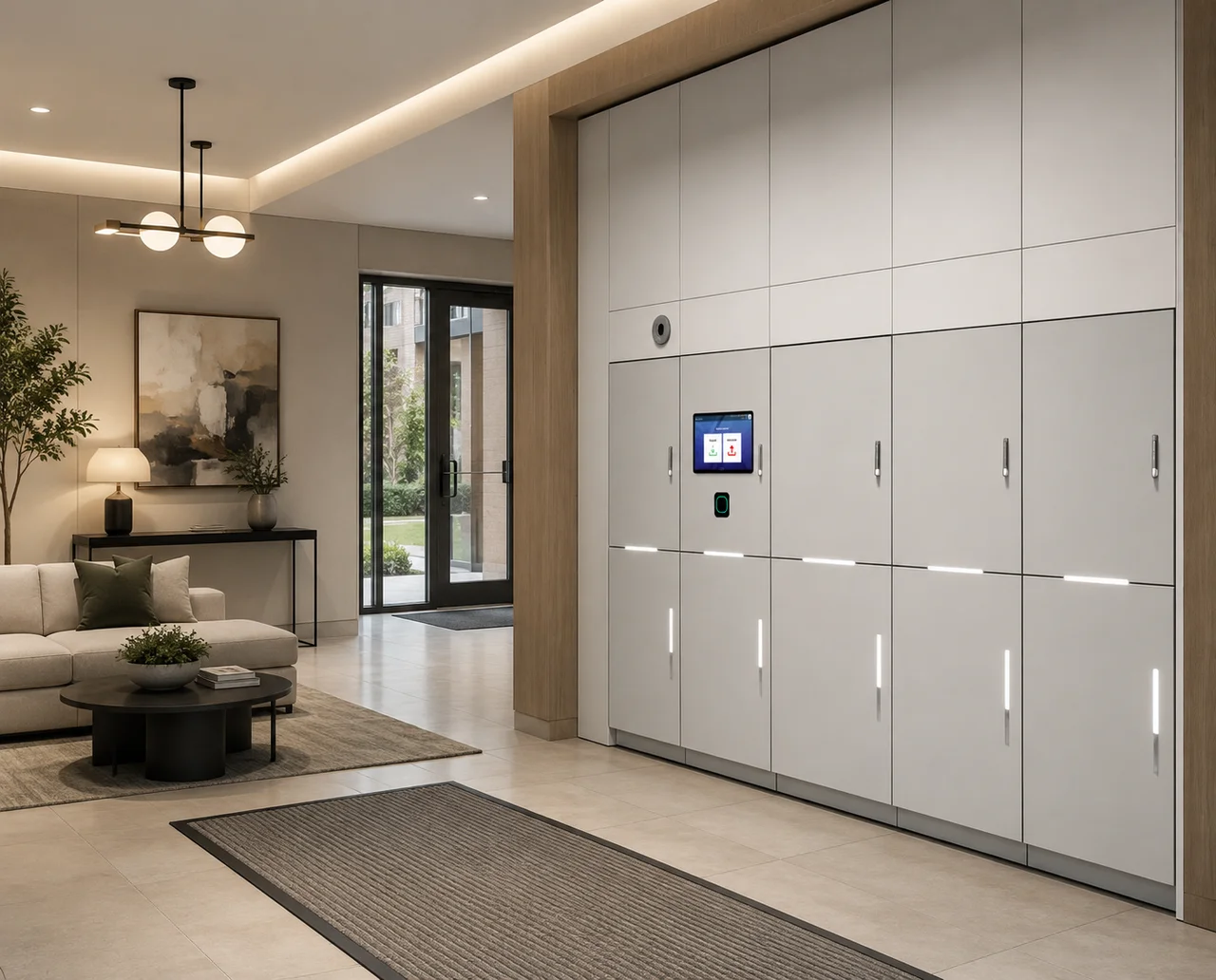
Assigned lockers and temporary storage
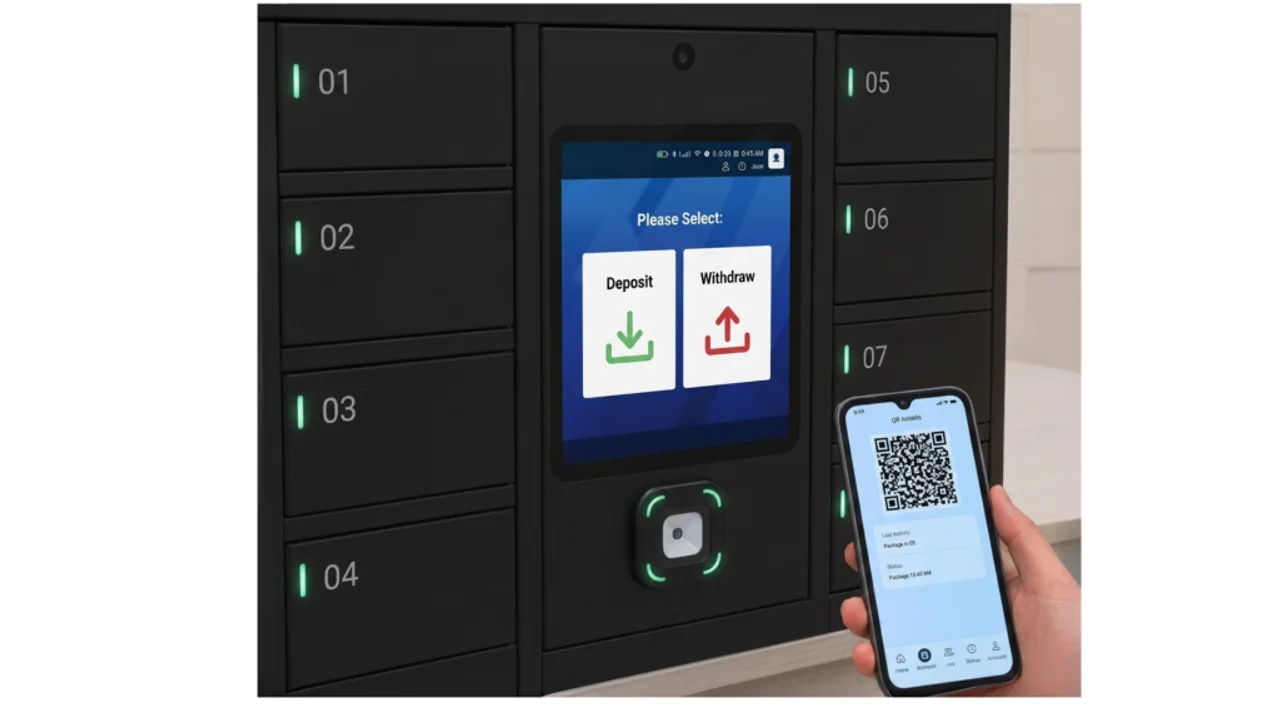
Assigned lockers for individuals or teams
An administrator assigns lockers to staff or teams. Users scan the personal QR code in their mobile app at the locker. If they have one assigned locker, it opens automatically. If they have several, they select one on the terminal screen.
Temporary deposits and collections
Select deposit or collection at the locker terminal, then scan a QR code. To deposit an item, select a locker. To collect it, the system opens the relevant locker. The system can send notifications when an item is deposited or collected.
Where to use smart lockers
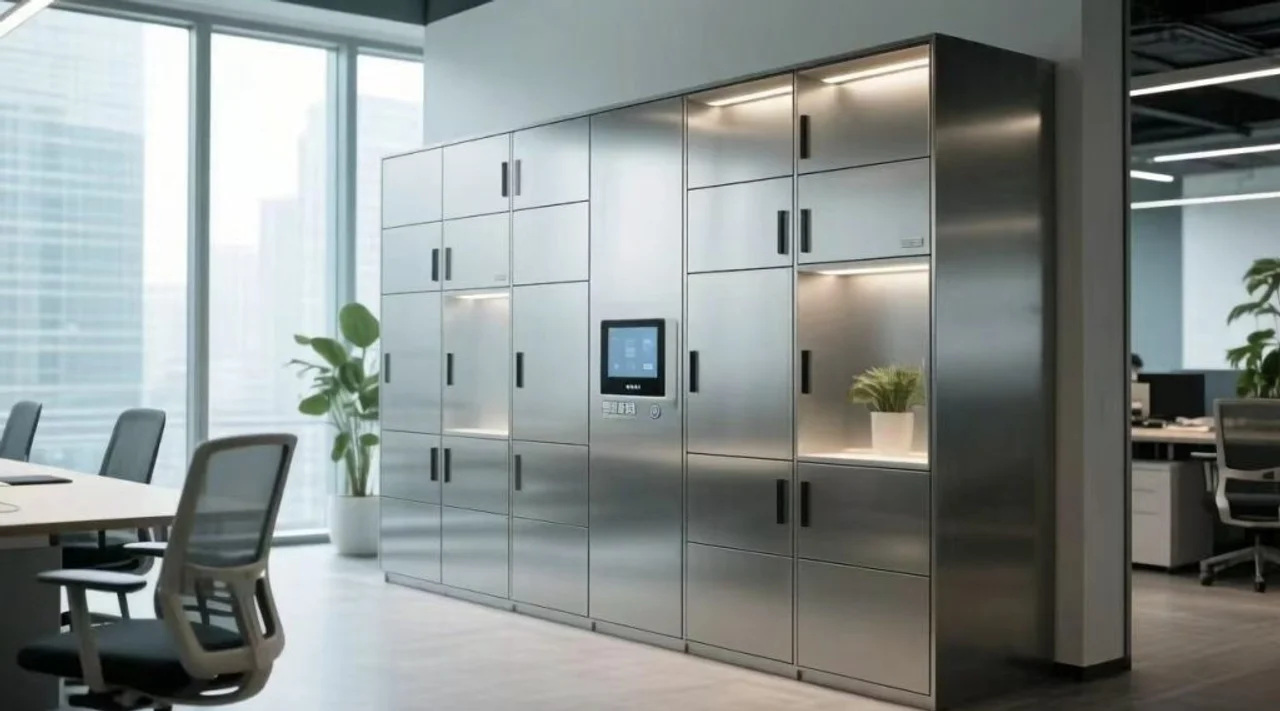
Staff and team storage
Offices and shared workspaces can assign lockers to individuals or set aside shared lockers for supplies and team equipment.
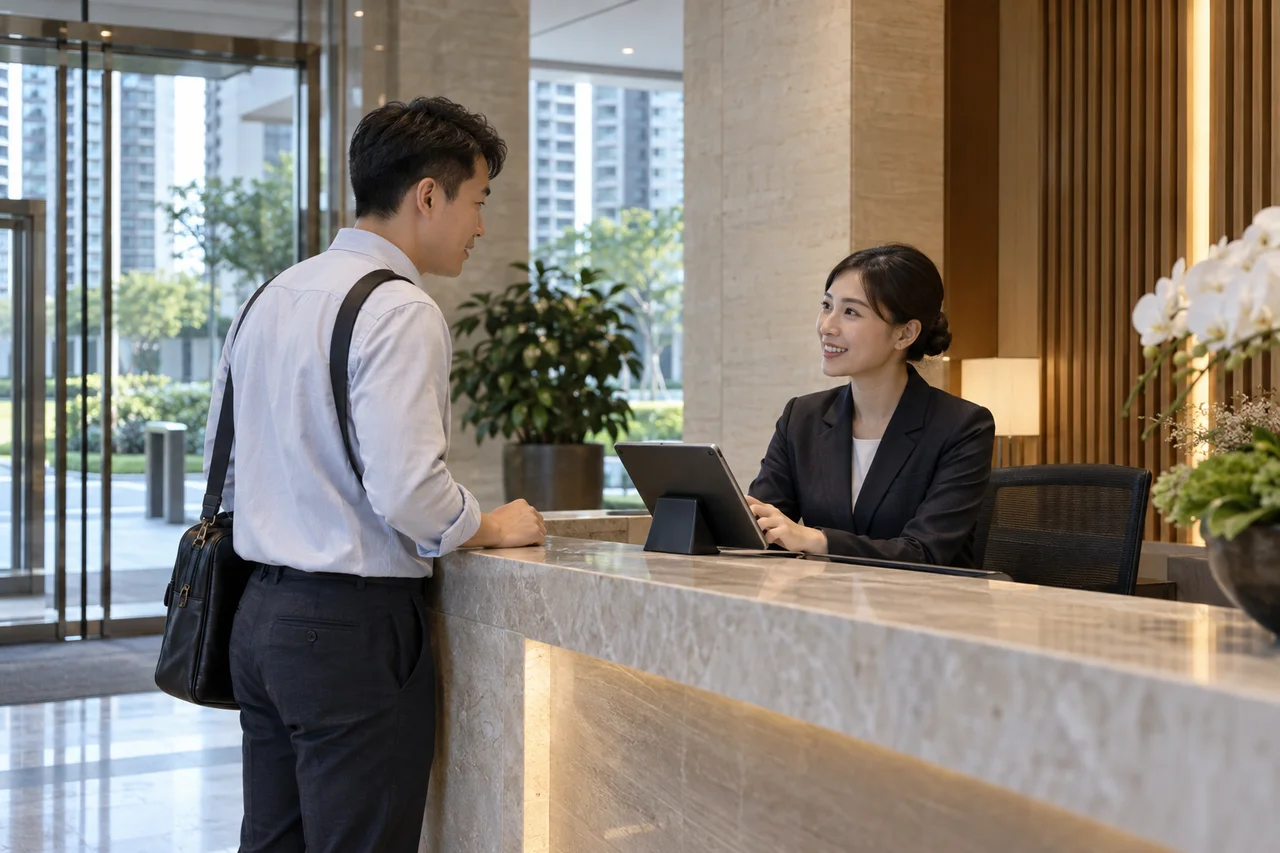
Temporary visitor storage
Reception areas and other sites with regular visitors can provide lockers for personal belongings during a visit.
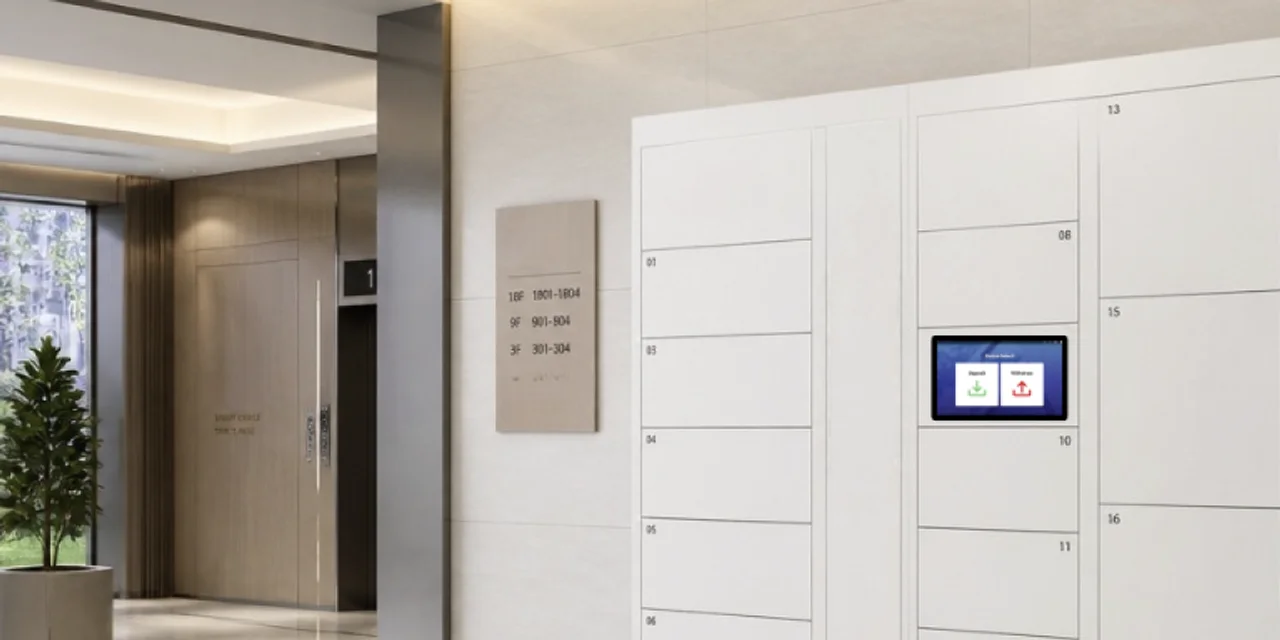
Document, equipment and parcel handovers
Staff can leave items in a locker for an authorised recipient to collect later, so both parties can use the locker on their own schedule.
What administrators can do
Set access permissions
Assign lockers to individuals or groups and set access by role, department, or shift.
Check locker status
See in real time which lockers are in use and whether their doors are open. You can also review usage records.
Unlock lockers remotely
Open a specific locker through the management platform when a user needs help or a locker needs maintenance.
What to plan before installation
Site and locker sizes
Share the proposed installation location, expected number of users, and typical item sizes to help determine how many lockers you need and how large they should be.
How people will use the lockers
Identify which lockers should be assigned long term, which will serve temporary visitors, and whether you need to support item handovers.
Access and notifications
Tell us how users should get locker access and who needs to be notified when items are deposited or collected.
Common questions
Can lockers be assigned to individuals or teams long term?
Yes. An administrator can assign a locker to a specific user for long-term use or let authorised team members share it.
Can visitors use a locker temporarily?
Yes. Sites can provide lockers for short-term visitor storage. How visitors get locker access can be confirmed when planning the setup.
How do I open a locker with my phone?
Display your personal QR code in the Smart Property app and hold your phone up to the locker scanner. Depending on your access and how you're using the locker, the system will open the relevant door or ask you to select a locker.
Can the system send a notification when an item is deposited or collected?
Yes. The system supports deposit and collection notifications. Who receives them and when they are sent can be confirmed during planning.
What's the difference between a smart locker and a smart mailbox?
Smart lockers are used for staff storage, temporary visitor storage, and handovers of documents, equipment, or parcels. Smart mailboxes let residents collect mail and receive notifications when it arrives.

Discuss your smart locker setup
Tell us where you plan to install the lockers, how many people will use them, and what they'll be used for. We'll help you plan the locker setup around assigned storage, temporary use, or item handovers.
Discuss your smart locker setup